
Two career directions can share some skills and still ask for different proof. Coordinating milestones may support a project coordination direction, for example, while an operations analysis direction may call for evidence of investigating a process and explaining a recommendation. When both possibilities are on your mind, comparing job titles alone will not show what your own career history supports.
AskMyCareer Role views let you define two or three reusable directions against the same saved Career Graph, assess each direction against criteria you choose, inspect the cited evidence, and generate a comparison with concrete next actions. The result is a reading of the evidence captured in your graph. It does not calculate an overall fit score or decide which career is best for you.
Separate an evidence review from a whole-career decision
Role views are reusable direction profiles, not profiles of individual vacancies. Each view is attached to one saved Career Graph. You can write its criteria yourself or adopt selected, previously extracted criteria from a job in Job Tracker. Each assessment shows how the eligible structured evidence in the selected graph scope relates to those criteria.
That is a focused task. If your decision also turns on compensation, local demand, schedule, training cost, motivation, or reversibility, you need to investigate those factors separately. The site's career path decision matrix is a broader personal decision method with weighted criteria and research prompts. Role views do not implement its scoring method. For preparation against one particular vacancy, use a job-specific workflow such as role-specific interview preparation.
Start from one saved Career Graph
Before creating views, check that your Career Graph contains structured examples relevant to the directions you want to explore. Role views can only assess captured, eligible career evidence. A summary or a hoped-for future skill cannot substitute for a documented project, experience, skill, or other supported graph entry.
- Open Role views from the Career Graph library.
- Choose the saved graph that contains the evidence you want to review.
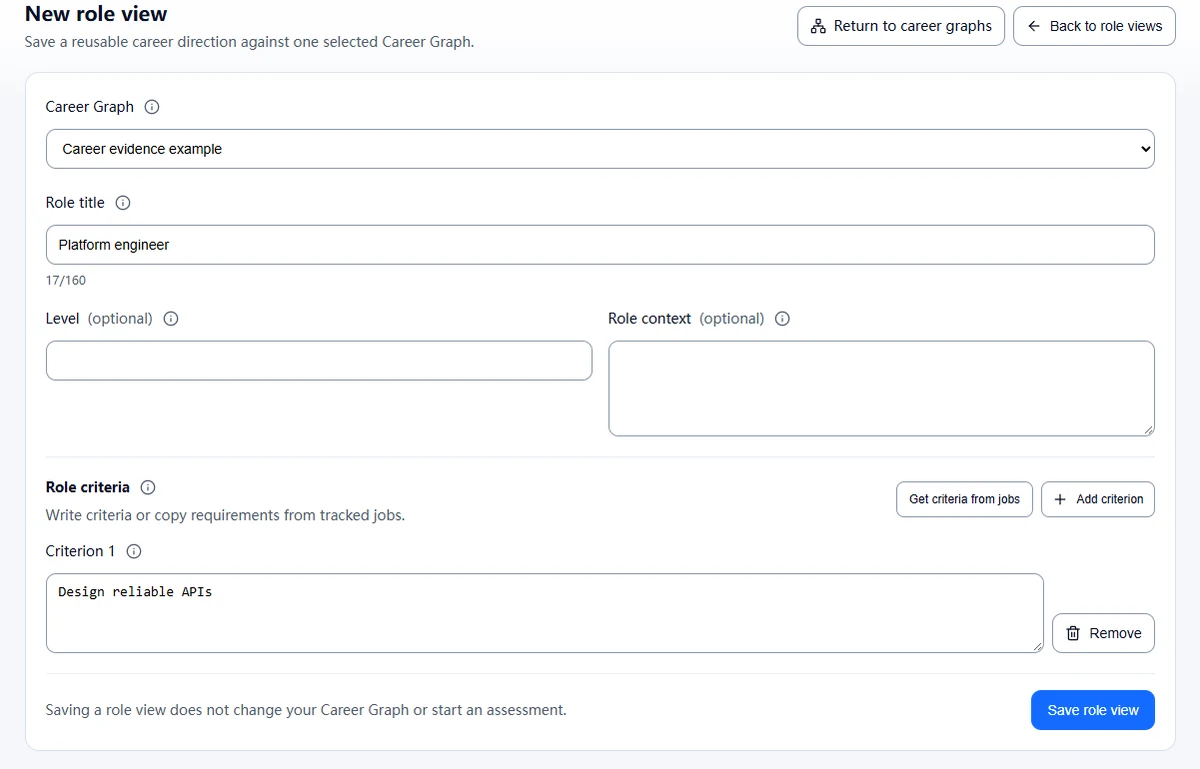
- Create one role view for each direction, using a clear title and any useful level or context.
- Keep the views tied to that same graph. Their source graph cannot be changed after creation.
The graph library may contain graphs with similar names, so verify the selected source before you begin. Creating, editing, and saving a role view does not generate an assessment or use an AI allowance. A title-only view can be saved, but you need at least one criterion before you can assess it.
Write criteria that make the directions meaningfully different
Keep each criterion specific enough that a piece of career evidence could support it. A direction such as project coordination might use criteria about sequencing milestones, managing dependencies, or communicating delivery risks. An operations analysis direction might ask about examining a workflow with data, identifying a cause, or explaining a process recommendation. These are examples to adapt to the work you actually want to do, not a standard for every job with those titles.
On the create or edit form, use Add criterion to write your own. Each view can have up to 20 criteria, with a maximum of 1,000 characters per criterion. You can edit or remove a criterion before assessing the view.
If a relevant posting is already saved in Job Tracker, choose Get criteria from jobs. Select a job, pick the extracted requirement or responsibility bullets that matter, and edit them if needed before adding. The selected text is an independent copy in your view. It does not stay linked to the job, and later changes to the job will not update it. The picker uses criteria already extracted into the saved structured job profile; it does not re-extract the posting. A job without extracted criteria will not supply invented bullets, so write criteria yourself or use a job with saved extracted requirements.
Treat adopted criteria as a way to define what you want to examine, not as proof that a requirement is universal or objectively important. In particular, a posting's language is one source for your comparison, while your own priorities and evidence remain separate decisions.
Assess each view, then inspect the citations
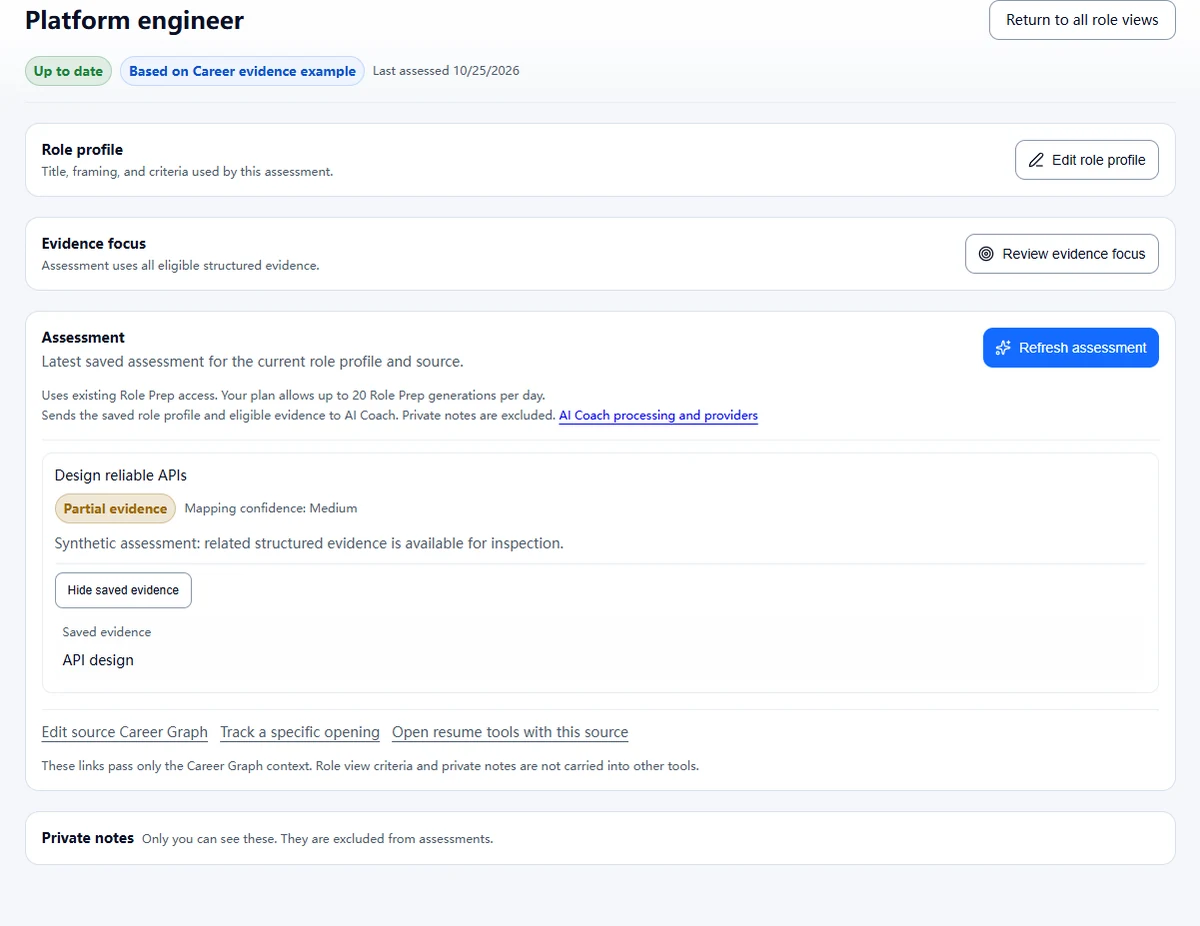
Open a role view and choose Generate assessment. This is an explicit request. Each assessment generation uses one existing Role Prep allowance. Opening, listing, editing, or saving the view does not generate an assessment. If you later change the role profile, focus, or source graph, use Refresh assessment when you want an updated result.
Each criterion receives an evidence support state:
- Strong means the captured evidence supports the criterion.
- Partial means related evidence exists but does not fully support it.
- Unclear means the evidence is ambiguous.
- Gap means no evidence for it was found in the selected captured scope. It is not proof that you lack the ability.
Strong and Partial findings have citations. Open a citation to check the exact Career Graph item the assessment used. Ask whether it shows your part in the work, the relevant task, and the level of responsibility the criterion describes. The strength of a match is about the evidence mapping, not a score of your underlying ability. If confidence is shown as low, medium, or high, it describes confidence in that evidence mapping, not your ability. A confident-looking sentence is not a substitute for checking its cited source.
Assessments use eligible structured career evidence from the saved graph. An explicit assessment request sends the saved role profile, criteria and eligible structured evidence in the selected scope to the configured model provider under the existing privacy terms. Private notes are not assessment input. The default scope is All eligible structured career evidence. You can focus on selected evidence items and their related entries, but material outside that selection is not assessed. Use a narrower focus only when it makes the question clearer, and note the scope when reading the result. A gap in a narrow selection may mean the missing example is elsewhere in your graph. If the graph has no eligible structured evidence, add accurate career details to the graph before assessing.
Compare directions without forcing them onto one scale
Consider someone comparing project coordination with operations analysis. The same graph might include an example about keeping milestones and dependencies visible, and another about reviewing how a handoff moves through a process. The project coordination criteria could ask about planning and follow-through; the operations criteria could ask about diagnosing a workflow with data and communicating a recommendation.
When the project view cites the milestone example, inspect whether the source supports the exact criterion. It may show coordination work without showing ownership of every delivery risk. In the operations view, a handoff example may show familiarity with how work moves while leaving the analysis method unclear. If a cited item does not substantiate a claim, do not stretch it to fit. If no relevant item appears, treat Gap as a prompt to look for a genuine example or plan a bounded way to build evidence, not as a verdict about ability.
Once both views have current assessments:
- In the Role views library, choose Compare role views.
- Select two or three views attached to the same exact graph.
- Choose Done to open their comparison.
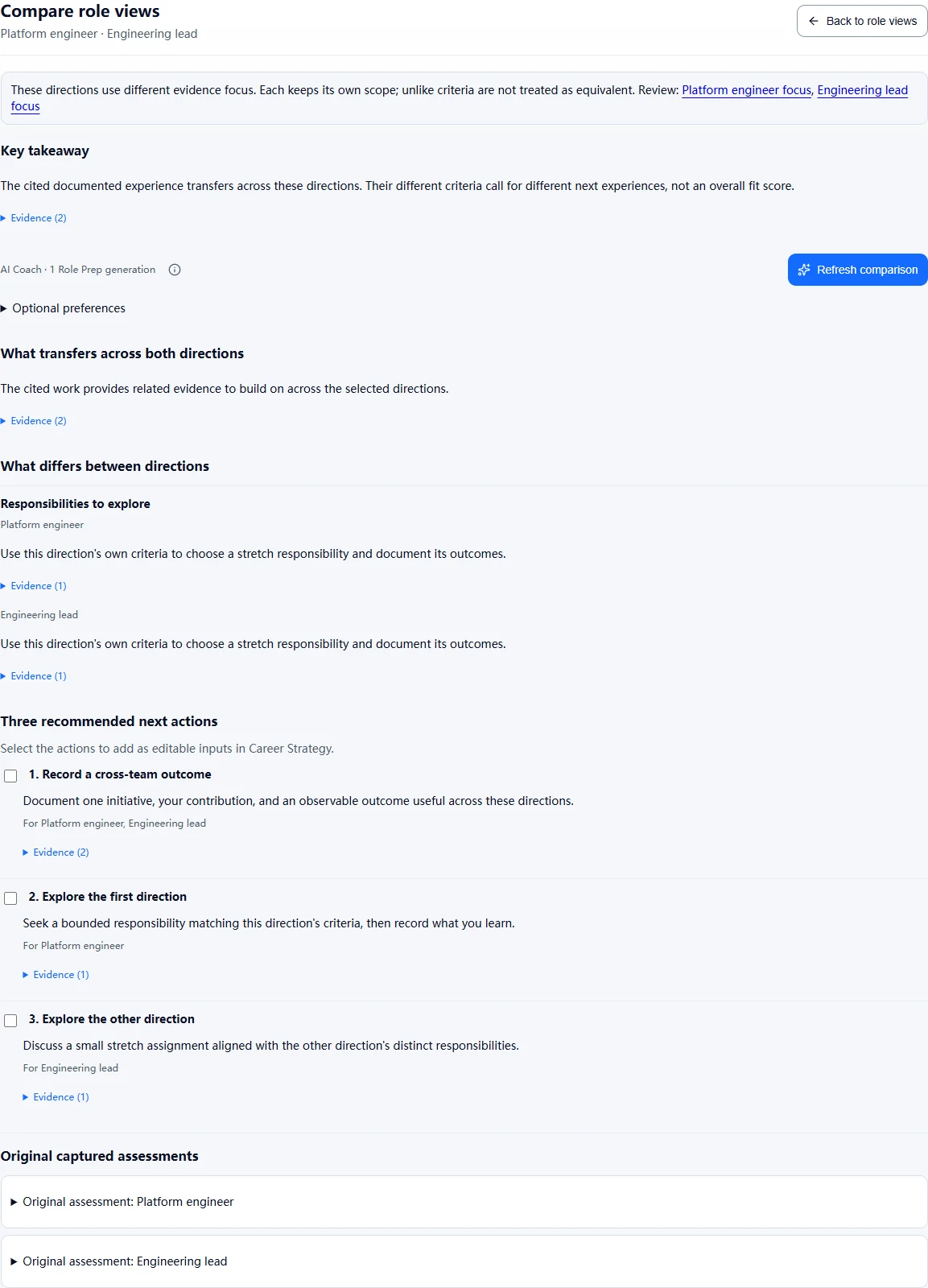
- Review the saved comparison if one exists. To create or update the synthesis, choose Generate comparison or Refresh comparison.
Opening a comparison only reads its latest saved synthesis. It does not call AI Coach or use an allowance. Generating or refreshing the comparison is a separate explicit action that uses one existing Role Prep allowance for the selected set, not one per direction. Current assessments are required first. If a role assessment or comparison is outdated, refresh it deliberately rather than assuming that it updated itself.
Generating a comparison sends the captured role profiles and assessment content, together with any explicit preferences, to the configured provider under the existing privacy terms. The synthesis gives you a grounded takeaway, evidence that transfers between directions, meaningful differences, and three concrete next actions. The original criterion assessments remain available as expandable references. Read the comparison as a map of what the selected evidence can currently support. Role views keep each direction's own criteria, so unlike requirements are not forced into an equivalent scale. Status counts and percentages do not select a winner.
Before relying on the takeaway, check whether both views used comparable evidence scopes. The comparison flags different focus scopes because one view may have had access to evidence the other did not. Optional work, environment, or transition preferences can be entered explicitly when you want the synthesis to consider them. Keep these preferences distinct from evidence support: a criterion may be well supported while a work condition is still a poor fit, or the reverse. If you provide no preferences, the system should not infer what matters to you or declare a personally best direction.
For the example above, a useful next action could be to document a real case where you examined a process and what evidence informed your recommendation. Another might be to ask a practitioner what responsibilities distinguish coordination from analysis in the kind of organization you are considering. Those actions gather information that the graph assessment alone cannot provide. They are choices to make in light of your situation, not claims about the result of any particular comparison.
Keep results current and carry useful actions forward
Role view assessments are snapshots of a role profile, selected focus, and graph version. If you change one of those inputs, the previous assessment becomes outdated and is not refreshed automatically. Comparisons also become outdated after changes to a graph, role profile, focus, or assessment. Generate or refresh explicitly when you want the updated inputs considered. Notes-only edits do not change assessment evidence.
The cited evidence points back to the captured Career Graph source. If the graph changes, inspect the freshness status before relying on an older result. If a source has been removed or its retained history is no longer available, that citation may no longer open; the feature does not substitute a different current item and present it as the original evidence.
When the comparison offers an action that is worth keeping, select it and choose Add to Career Strategy. You can add selected action details to an existing Career Strategy workspace or a new action-only workspace. The copied actions remain editable, separate from generated preparation content, and are not regenerated or used to replace an existing plan. This transfer does not use another AI allowance.
Role views are most useful when the next question is concrete: what should I verify, what example should I document, or which direction deserves a small next step? Use the comparison to make those questions visible, then bring in the market, work-condition, or personal-priority research that belongs to the larger career decision. To begin, open Role views in your Career Graph and create two directions from the same saved source.